
Inventor file viewer
Open Inventor .ipt parts without Inventor, as exact solids, in FabDesk, our free online CAD.
Drop an IPT or STEP file here
Also opens CATIA, Creo, NX, SLDPRT, IGES, STL and DXF.
Choose a fileBy uploading a file you agree to our Terms and Privacy Policy.
How it works
Drop
Drop the .ipt file. It is read on our server and not kept.
Open
On a computer the part opens in FabDesk on top of this page.
Use it
Measure it, add features, save it as STEP, or Quote this part.
What you can do
No Inventor needed
Open Inventor parts in your browser, on Windows, Mac or a Chromebook.
Exact solid
Each body is checked: closed, valid, every edge on its faces. Then it opens as an exact part, not a mesh.
Measure
Measure faces, edges, holes, angles and overall size.
Quote the original
Quote this part sends the .ipt itself to a quote, where it is converted exactly.
Other native formats
CATIA, Creo, NX, Fusion, Rhino and ACIS parts open here too.
Your IPT file in FabDesk
The part is listed under Parts with a material: the feature commands work on it, and Get price prices it.
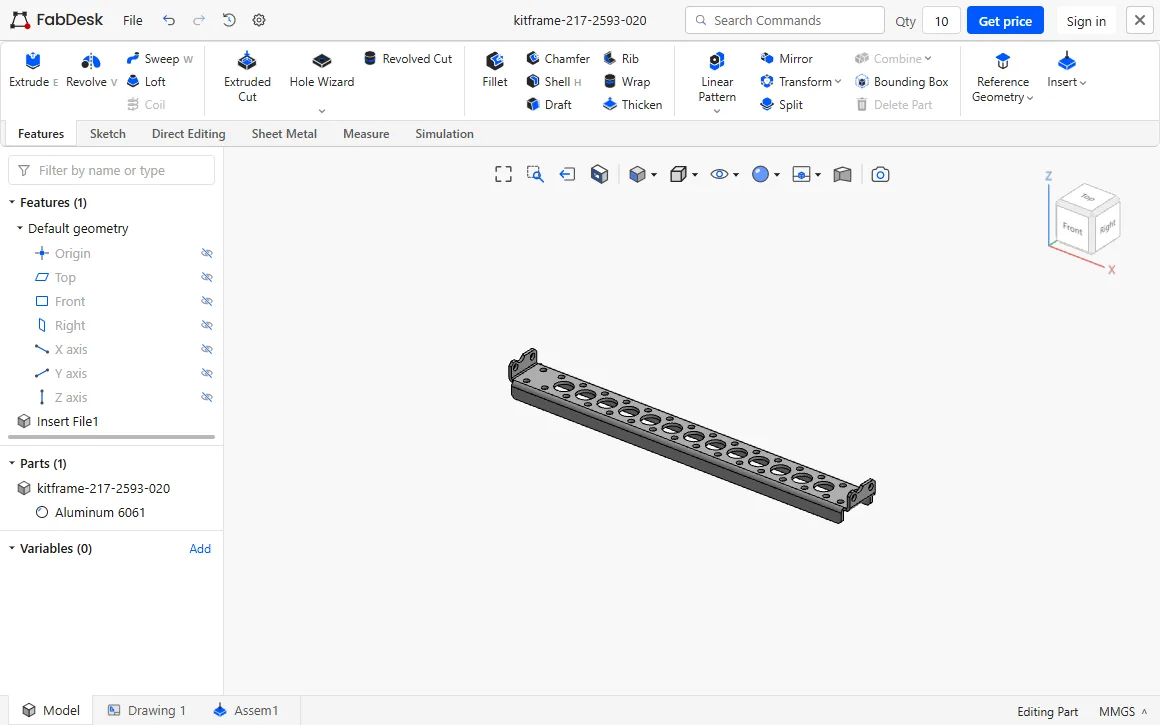
Exact part
Measure, add features, make a drawing, export STEP or get a price.
More you can do once it is open in FabDesk
On a computer the file opens in FabDesk, our free online CAD. These work there with a free account.
Save as another format
File › Export writes STEP, IGES, FreeCAD (.FCStd), STL, 3MF, OBJ, Rhino (.3dm, as a mesh), GLB, FBX or USDZ, and drawings as PDF, DXF or SVG. A closed mesh can first become a solid with Convert to Body.
CAD Cloud and version history
Parts save to your account in folders as you work. Version history lists every saved change and the versions you name: open an older one, or restore it.
Share it
Invite people by email to view or edit, or send a link limited to your workspace or to anyone signed in, with an expiry date.
Edit and draw
A part that opens as a solid takes new holes, cuts, fillets and shells, and gets a 2D drawing with section views, dimensions and GD&T.
Simulation
Run a linear static or natural-frequency study: fix faces, load faces, and read stress, displacement and factor of safety. Meshing and solving run in the cloud.
Assemblies and sheet metal
Put parts together with mates and check them for interference, or build sheet metal with flanges, hems and a flat pattern.
What is an IPT file?
IPT is the part file of Autodesk Inventor. It holds the sketches, features and parameters that build the part, and the solid they produce, in a format only Inventor writes.
This page reads the solid Inventor saved. When every body passes our check it opens as an exact part you can edit, draw and save as STEP; otherwise it opens as a mesh to view and measure. Against a STEP of the same name in the same public project, 72 of 74 parts came out equal in size and volume.
STEP and IGES: an exact circle
The file stores the hole as a true circle of 20 mm diameter. CAD programs, CAM and the quote read the size directly, so the part can be edited, drawn and machined.
STL and OBJ: flat triangles
The same hole becomes 16 straight edges whose middles sit 0.19 mm inside the true circle. A finer mesh gets closer but is never round; 3D-printing slicers read this form.
Save an Inventor part as STEP
For an editable part, four steps in Inventor, then drop the file here.
| Step | In Inventor |
|---|---|
| 1 | Open the part (.ipt). |
| 2 | Choose File, then Export, then CAD Format. |
| 3 | Set Save as type to STEP Files (*.stp; *.ste; *.step). |
| 4 | Save, then drop the .stp file on this page: it opens as an exact solid. |
IPT, IAM or STEP
What each file opens as here.
| File | What it holds | Opens here |
|---|---|---|
| IPT (part) | Feature history and the solid, Inventor only | Yes: an exact part when it checks out, otherwise a mesh |
| IAM (assembly) | Which parts are used and where; the parts stay in their own .ipt files | No: save the assembly as STEP |
| STEP | Exact solid, no history, any CAD program | Yes, as an exact part: edit, 2D drawing, price |
Supported formats
Every tool accepts the same file types.
| Format | Extensions | Opens as |
|---|---|---|
| STEP | .step, .stp | 3D solid: view, measure, edit, draw and price (FabDesk on a computer) |
| IGES | .iges, .igs | 3D solid or surface: view, measure, edit and price (FabDesk on a computer) |
| STL | .stl | 3D mesh: view, measure and price |
| OBJ | .obj | 3D mesh: view, measure and export |
| 3MF, glTF / GLB, PLY, AMF | .3mf, .glb, .gltf, .ply, .amf | 3D mesh: view, measure, convert to STL; closed meshes convert to a STEP body |
| DXF | .dxf | 2D drawing: view, measure and price |
| AutoCAD drawing | .dwg | 2D drawing, R13 (1994) to the 2018 format: read on our server and opened like a DXF (view, measure, extrude, price) |
| FBX, DAE (COLLADA), 3DS, SVG | .fbx, .dae, .3ds, .svg | Opened in FabDesk on a computer: FBX, DAE and 3DS as a mesh, an SVG as a sketch to extrude |
| SOLIDWORKS assembly | .sldasm | 3D mesh when the file holds every part; otherwise save it as STEP and open the STEP |
| SOLIDWORKS part | .sldprt | 3D solid when it reads exactly, otherwise the display mesh SOLIDWORKS saved: view and measure (FabDesk on a computer) |
| NX part | .prt | 3D solid when the file confirms it, otherwise a mesh: view and measure (FabDesk on a computer) |
| FreeCAD part | .fcstd | 3D solid |
| Fusion design | .f3d | 3D solids, every body in place, when each body checks out; otherwise a mesh (FabDesk on a computer) |
| Inventor part | .ipt | Exact part when every body checks out, otherwise a mesh |
| CATIA part | .catpart | 3D solid when the part checks out (a closed, valid solid that matches its own preview), otherwise a mesh: view and measure (FabDesk on a computer) |
| Creo, Rhino, ACIS | .prt, .3dm, .sat, .sab | Mesh: view and measure (FabDesk on a computer). Save as STEP to edit |
| Parasolid | .x_t, .x_b | 3D solid when the body checks out (closed, every edge on its faces): view, measure and price |
| JT | .jt | Mesh for JT 8, 9 and 10 files: view and measure. JT 7 and older: save as STEP, or upload the file to a quote |
Limits
- Files up to 200 MB; a file over 50 MB is read on a separate server and takes a few minutes.
- A part that does not pass the check opens as a mesh: view and measure, no editing. The feature history never comes over.
- Assemblies (.iam) and Inventor drawings (.idw) do not open here. A DWG opens as a 2D drawing.
- Very large parts (over one million triangles) do not open as a mesh.
FAQ
Can I open an IPT file without Inventor?
Yes. Drop it on this page. It opens as a mesh you can rotate and measure, in the browser, with no install.
Why did my part open as a mesh?
It did not pass our check: a body was not closed, or an edge did not lie on its faces. Rather than give you an editable part with a wrong face, we show the mesh. A STEP export from Inventor opens as an exact solid.
How do I convert IPT to STEP?
Open it here: when it opens as an exact part, choose File, then Export, then STEP in FabDesk. In Inventor, choose File, then Export, then CAD Format, and save as STEP.
Can I open an Inventor assembly (.iam)?
Not on its own: an .iam does not hold the parts. Save the assembly as STEP in Inventor and open the STEP file.
Is my file stored?
An IPT is read on our server and not kept. If you price the part, the file is uploaded to your quote like any other upload.
Can I get a price?
Yes. We price eligible parts instantly. Other parts go to an engineer for review. You can change the material, finish and quantity before ordering.
Is it free?
Yes. Opening and measuring a file need no account. Sign in to get an instant price.
More free tools
- FabDesk online CADModel or edit a part in your browser and make its 2D drawing.
Open and measure
- Online CAD viewerOpen STEP, SOLIDWORKS, Inventor, IGES, STL and DXF files in one viewer.
- 3D file viewerOpen STL, OBJ, 3MF, GLB and STEP models in 3D in your browser.
- STEP viewerOpen STEP and STP files, measure them and get a 2D drawing.
- SLDPRT viewerOpen SOLIDWORKS part files without SOLIDWORKS and measure them.
- SLDASM viewerOpen SOLIDWORKS assemblies, or save them as STEP and open that.
- CATIA file viewerOpen CATIA V5 .CATPart parts without CATIA and measure them.
- IGES viewerOpen IGES and IGS files in 3D and measure them.
- STL viewerView STL meshes in 3D and check their size before printing.
- G-code viewerSee the tool paths in a G-code file layer by layer, with the print time and filament.
- 3D print time estimatorEstimate a 3D print time and filament from its G-code, planned like printer firmware.
- NC viewerOpen an NC or G-code program and play the tool path move by move.
- G-code simulatorPlay a G-code program move by move and see the tool or nozzle path build up.
- OBJ viewerOpen OBJ models in 3D and measure them.
- 3MF viewerOpen 3MF print files in 3D and measure them.
- GLB viewerOpen GLB and glTF models in 3D and measure them.
- PLY viewerOpen PLY meshes and scans in 3D and measure them.
- FBX viewerOpen FBX models in 3D, measure them and save them as STL.
- DAE viewerOpen COLLADA (.dae) models in 3D, measure them and save them as STL.
- GlTF viewerOpen .gltf models with their .bin in 3D and measure them.
- 3DS viewerOpen 3D Studio (.3ds) models in 3D, measure them and save them as STL.
- 3DM viewerOpen Rhino .3dm models without Rhino and measure them.
- NX part viewerOpen Siemens NX .prt parts without NX and measure them.
- X_T viewerOpen Parasolid .x_t and .x_b files as exact parts and measure them.
- JT viewerOpen Siemens JT files in 3D and measure them.
- F3D viewerOpen Fusion 360 .f3d designs without Fusion and measure them.
- FreeCAD viewerOpen FreeCAD .fcstd files online as exact parts.
- SAT file viewerOpen ACIS .sat and .sab parts in 3D and measure them.
- DXF viewerView and measure DXF drawings and flat patterns.
- DWG viewerOpen AutoCAD DWG drawings without AutoCAD.
Edit
- STEP editorChange a STEP file in your browser: move faces, add holes and cuts, export STEP.
- Online STL editorEdit an STL in your browser: cut, add holes, fillet, save.
- STL repairFix holes, cracks, flipped and duplicate triangles in an STL, then save it.
- STL simplifierReduce an STL file size: keep fewer triangles, keep the shape, save a smaller STL.
- G-code editorEdit a G-code program next to its 3D tool path, then download it.
Convert to STEP, IGES or FCStd
- IPT to STEP converterConvert an Inventor part to STEP without Inventor.
- IPT to IGES converterTurn an Inventor part into an IGES without Inventor.
- IPT to FCStd converterTurn an Inventor part into an FCStd without Inventor.
Convert meshes
- IPT to STL converterTurn an Inventor .ipt part into an STL without Inventor.
- IPT to OBJ converterTurn an Inventor part into an OBJ without Inventor.
- IPT to 3MF converterTurn an Inventor part into a 3MF without Inventor.
- IPT to GLB converterTurn an Inventor part into a GLB without Inventor.
- IPT to glTF converterTurn an Inventor part into a glTF without Inventor.
- IPT to FBX converterTurn an Inventor part into an FBX without Inventor.
- IPT to USDZ converterTurn an Inventor part into a USDZ without Inventor.
- IPT to 3DM converterTurn an Inventor part into a 3DM without Inventor.
From a picture or text
- Lithophane makerTurn a photo into a lithophane STL: thick where it is dark, thin where it is light.
- Image vectorizerVectorize a bitmap logo or illustration into SVG shapes, in 1 to 8 flat colours.
Ready to order?
Configure the material, finish and quantity. Our engineers review every order before production.